Onboarding
Create a Survey
Onboarding : Create a Survey
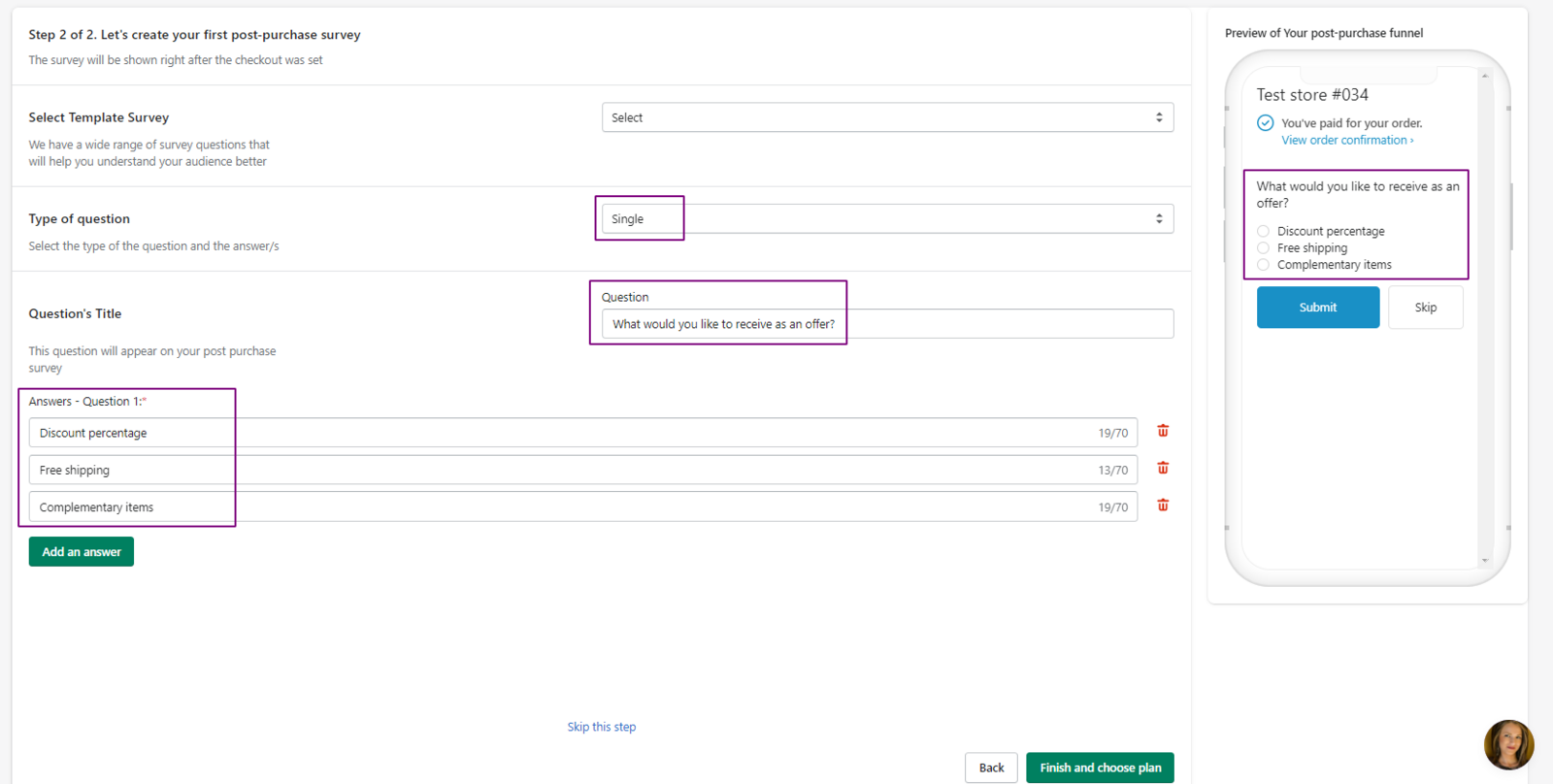
In Step 2 of onboarding, you can add surveys to the funnel created in Step 1. Surveys can use single-choice, multiple-choice, open-ended, and other question types.
After selecting the question type, create the question and answer choices.
The Preview section stays blank until a question and answer choices are added. Use it to check the survey before saving.
In the Select Template Survey section, choose a ready-made template and edit it as needed.
In the Type of question section, choose the question and answer type:
- Single: Customers can select only one answer.
- Multiple: Customers can select multiple answers.
- Open-ended: Customers can provide a text-based answer.
- Other: This type combines the functionalities of Single and Open-ended, allowing customers to select a single answer or provide their answer in text form.
After selecting the question type, use the Question’s title section to enter the question and answer choices.
If a survey is not desired for the Post-purchase funnel, this step can be skipped. However, merchants can always go back to the Post-purchase funnels tab and add the survey step later if they change their mind.
Wrap-up:
The survey step helps you collect customer feedback as part of the funnel.