Onboarding
Configuring Upsell Offers
Onboarding : Configuring Upsell Offers
The “Automagically✨ create my upsell funnel” section controls how upsell products are selected:
- Manual Selection: This is the default option, allowing you to manually choose the first upsell, second upsell, and downsell products that will be displayed on the post-purchase page when the conditions of the funnel are met.
The “Select Upsell Product” section enables you to choose the first upsell product, which will be the initial product displayed on the post-purchase page. You can also add a discount to this product. The “Preview” section allows you to see a real-time representation of how the post-purchase page will look. If a second upsell product is added, it will be displayed only if the first upsell product is ordered. In case the first upsell product is declined, a downsell product can be shown if one is added. When you install the app, one of your store’s products is automatically set as the initial upsell product based on store statistics. However, you can replace this product with another from the product list if needed.
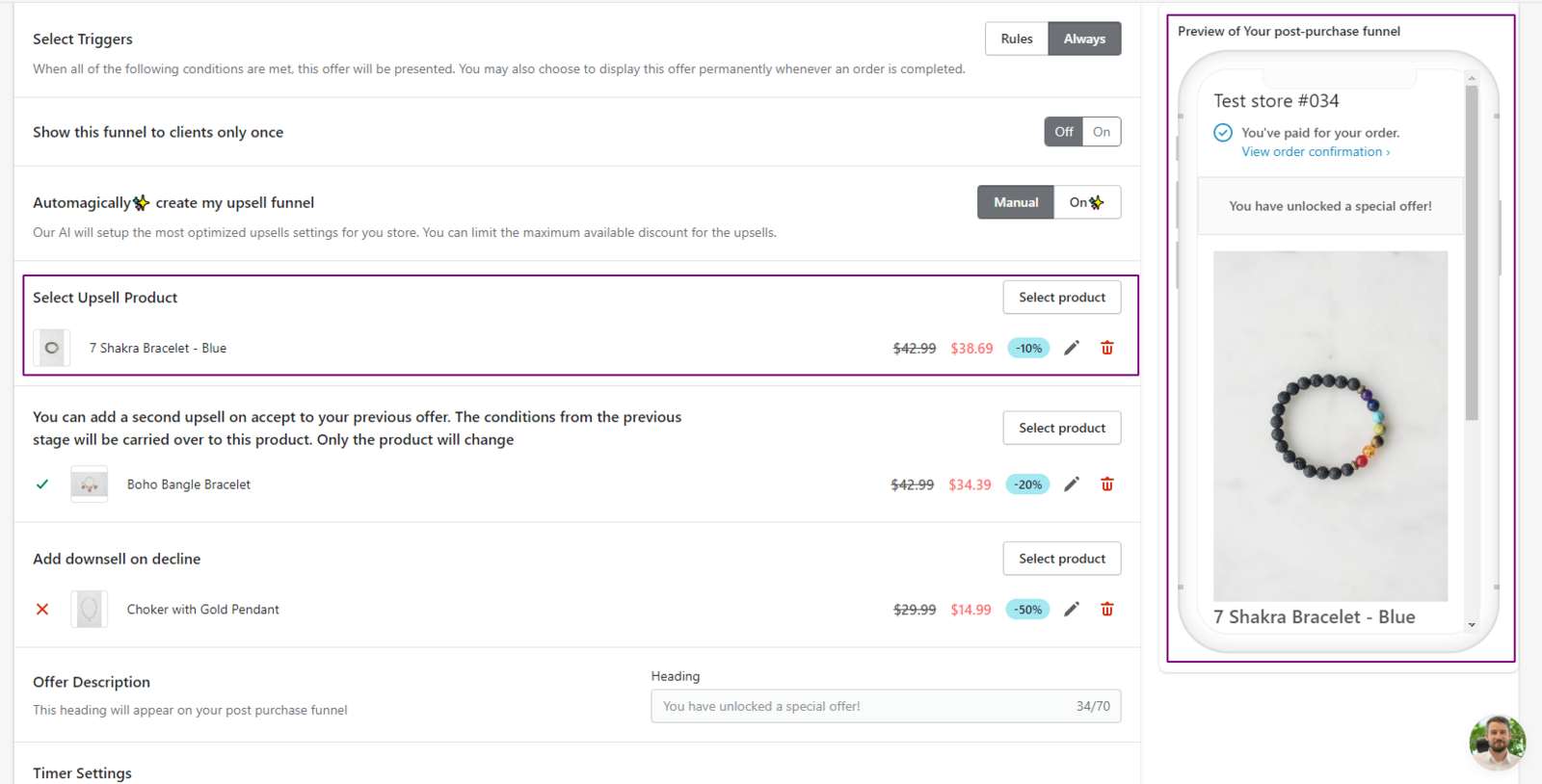
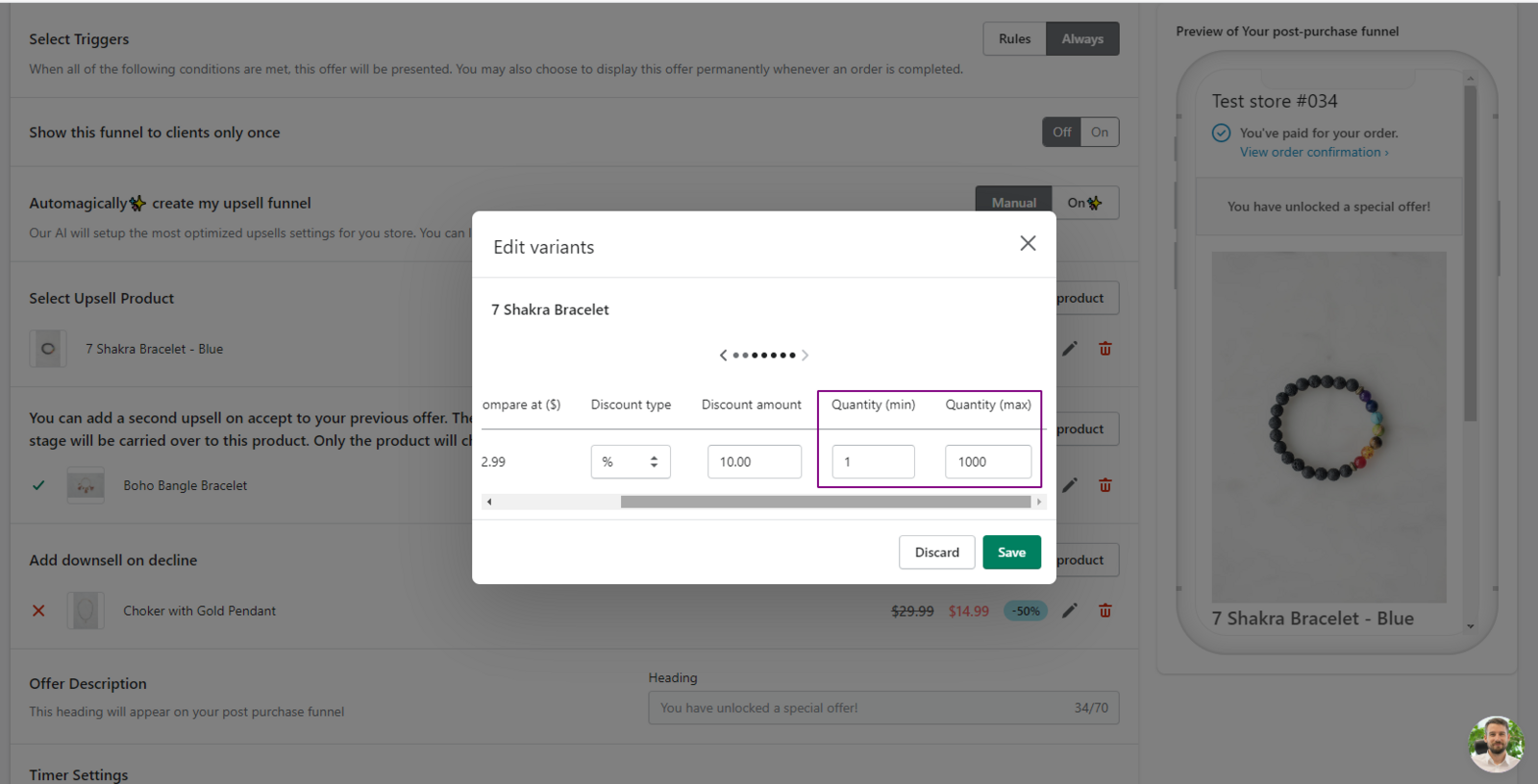
You can set minimum and maximum quantity limits for the product. This ensures control over the number of products that can be purchased on the post-purchase page when the funnel is displayed. If the user enters a quantity that is below or above the merchant’s specified limits, a warning message containing the limit will be shown to the user on the post-purchase page.
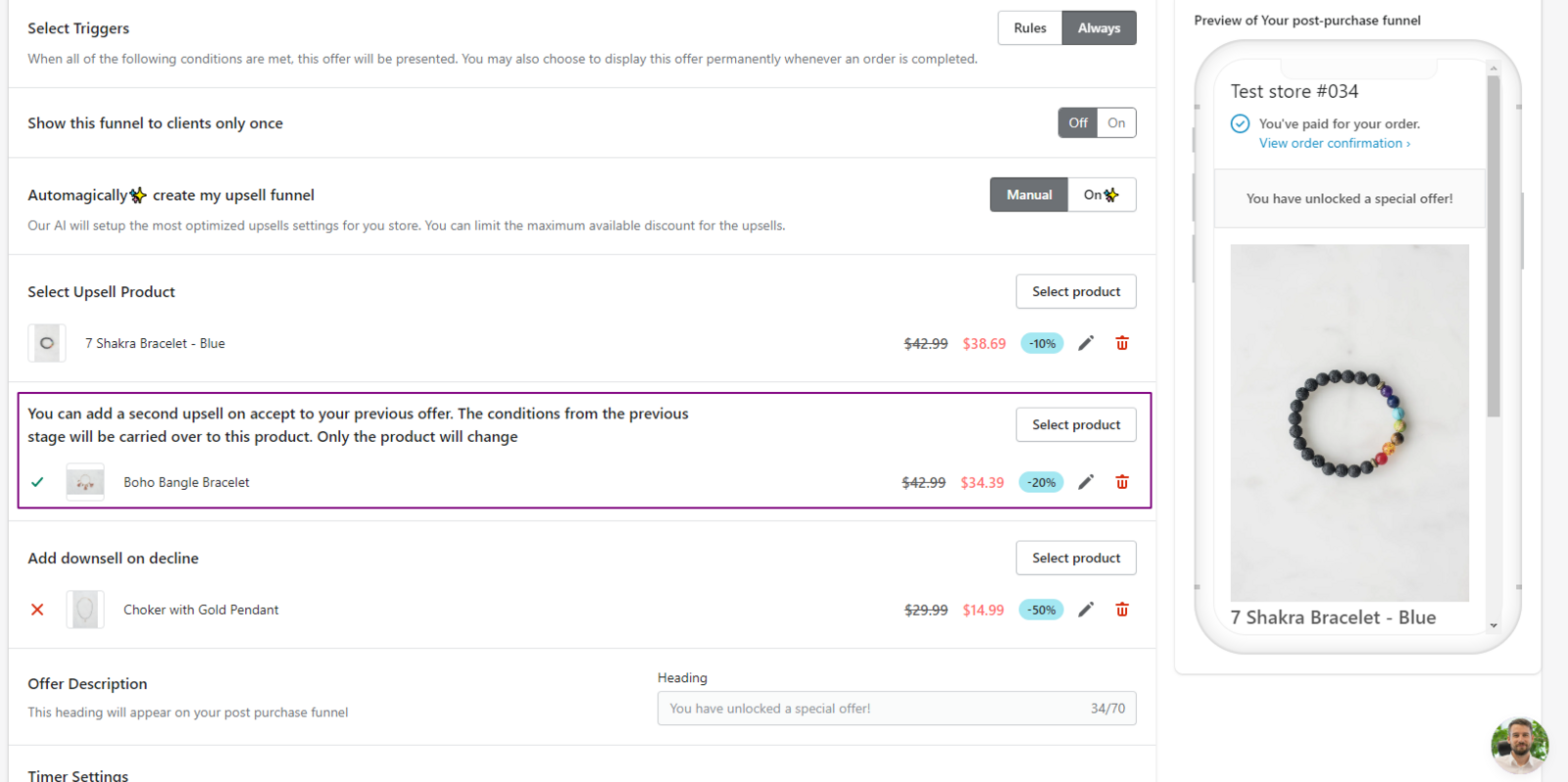
A second upsell product can also be added, including a discount and quantity limits. If the first upsell product is accepted on the post-purchase page, the second upsell product will be immediately displayed, giving the user the option to purchase it as well. Adding a second upsell product is optional. If it’s not added and the first upsell product is accepted, the user will be redirected to the Thank You page.
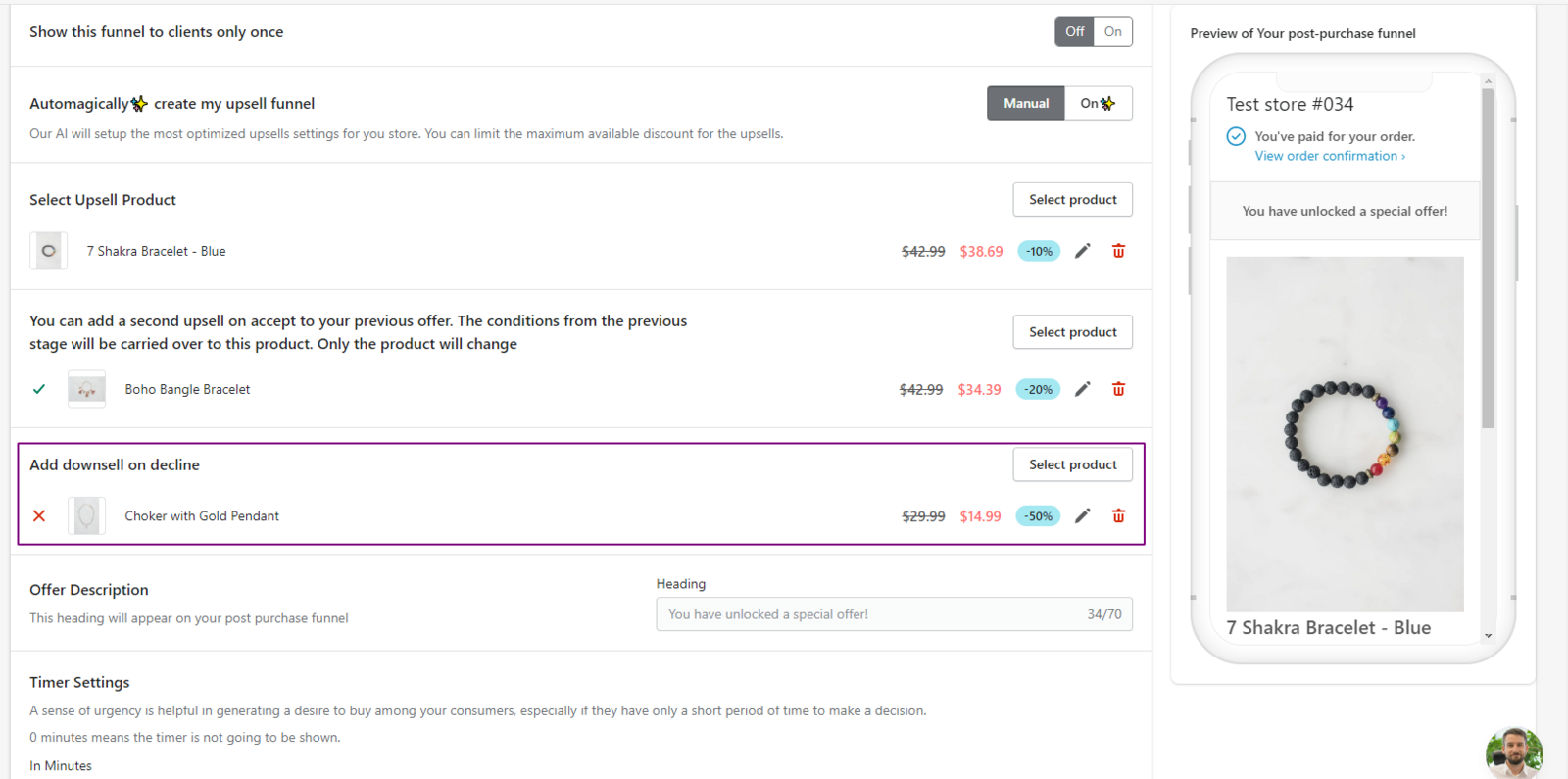
Additionally, a downsell product can be included with a discount and quantity limits. This downsell product will be displayed if the first upsell product is not accepted on the post-purchase page. The inclusion of the downsell product is also optional.
- Automated Selection: The second option automatically selects the first upsell, second upsell, and downsell products. Choose “On” instead of “Manual” in the “Automagically✨ create my upsell funnel” section. Products are selected based on store order statistics from the last 60 days.
The best-selling product from that period will be used as the main upsell product. The second best-selling product will be shown as the second upsell product, providing an additional upsell opportunity. The third best-selling product will be used as the downsell product, and its price will always be lower than the price of the main upsell product.
In the “Limit discount” section, a percentage discount can be set and applied to the main upsell, second upsell, and downsell products that will be displayed on the post-purchase page.
The “Product description” section allows you to choose whether you want to display the product description on the post-purchase page. By default, this option is enabled, meaning that the product description will be shown. However, if you disable the product description, a “Read more” button will be displayed instead. This can be seen in the “Preview” section. If the user clicks the “Read more” button, the product description will reappear on the post-purchase page.
These options control which upsell products appear on the post-purchase page and how they are presented.
Additional information:
Always and Rules funnels include A/B test functionality that lets you track two products. You can use A/B testing for the first upsell, second upsell, downsell, or a combination of them. You can also add discounts and set minimum and maximum purchase quantities. A/B testing tracks impressions, conversion rate, and revenue for each product.
- Automatically - the winning A/B test product is selected based on the higher conversion rate once the threshold is reached. The default threshold is 100, but you can edit it. You can also select a winner manually by clicking “Select winner” and confirming your choice. This disables the A/B test, and only the winning product is shown on the post-purchase page. If both products have the same conversion rate, the product with higher revenue is shown. For example:
- Product A - conversion rate: 20%, revenue: $100
- Product B - conversion rate: 20%, revenue: $120
- Product B will be displayed
- Manually - A/B test products continue rotating on the post-purchase page when the funnel conditions are met. Impressions, conversion rate, and revenue remain available for each product. You can select a winner at any time by clicking “Select winner” and confirming your choice.